
PhotoRobot 원격 지원 설정 가이드
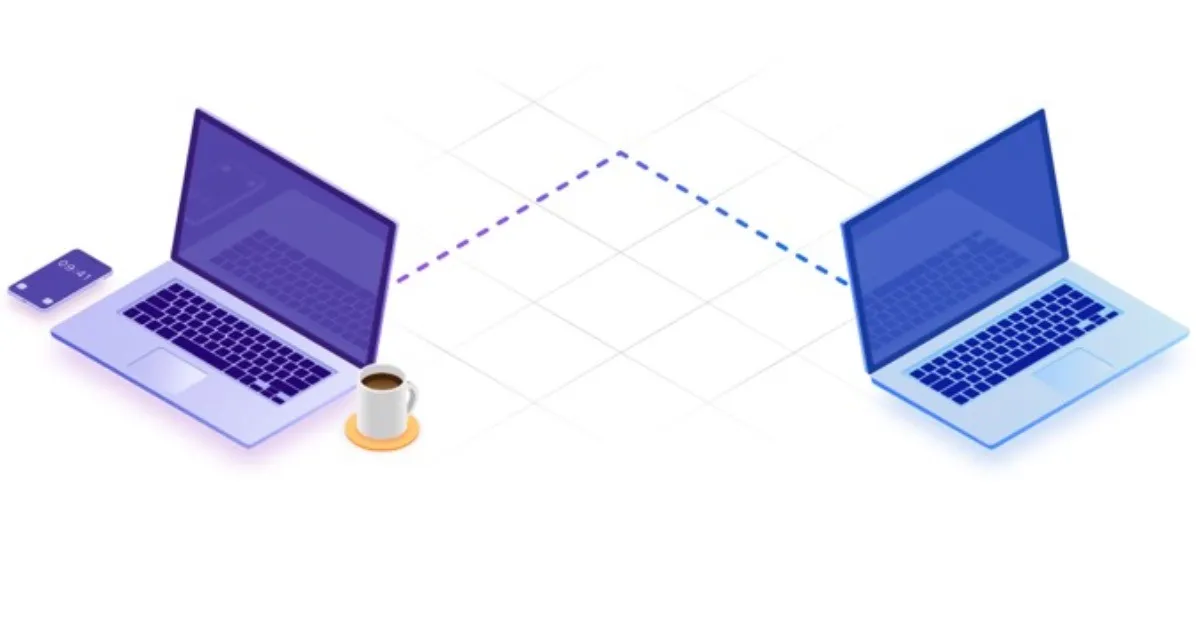
이 사용자 설명서는 PhotoRobot 원격 기술 지원을 위한 Splashtop SOS (EU) 앱 설치에 대해 설명합니다. Splashtop SOS는 PhotoRobot 기술자가 고객의 컴퓨터에 액세스하여 사용자가 특정 사례에 대한 권한을 부여한 후 기술 지원을 제공할 수 있도록 합니다. 그런 다음 당사 기술자는 Splashtop Business를 사용하여 기술 지원 요청이 있는 컴퓨터에 액세스할 수 있습니다.
따라서 사용자는 PhotoRobot Controls를 설치할 때 Splashtop SOS를 즉시 다운로드하여 설치하는 것이 중요합니다.
더 중요하게는, PhotoRobot이 시스템에 액세스할 수 있도록 사용자는 Splashtop SOS 앱의 올바른 지역 버전(EU)을 설치해야 합니다. 이는 사용자가 앱을 설치할 충분한 권한이 없는 경우와 같이 기술 지원 요청 지연을 방지하는 데 도움이 됩니다. PhotoRobot Controls와 동시에 앱을 설치하면 사용자는 필요할 때 필요한 지원을 받을 수 있습니다.
참고: PhotoRobot Controls의 설치 및 사용에 대한 전체 설명은 PhotoRobot - 시작하기를 참조하십시오.
EU 지역용 Splashtop SOS 다운로드
사용자는 Splashtop SOS 앱의 EU 지역 버전을 다운로드하는 것이 중요합니다. 이는 PhotoRobot 기술자가 EU에 기반을 두고 있기 때문입니다. Splashtop SOS의 미국 지역 버전도 있지만, 미국 버전은 PhotoRobot이 시스템에 액세스하는 것을 허용하지 않습니다.
Splashtop SOS 앱의 EU 지역 버전을 다운로드하려면 다음 링크를 브라우저에 복사하여 붙여넣으십시오.
- https://sos.splashtop.com/en/sos-download?region=eu
페이지를 열면 Splashtop SOS 설치 프로그램이 컴퓨터로 다운로드되거나, 필요한 경우 링크 중 하나를 클릭하여 설치 프로그램을 수동으로 다운로드할 수 있습니다.
이 페이지에서는 컴퓨터에서 애플리케이션을 찾아 설치하는 단계와 애플리케이션의 원격 지원을 허용하는 방법을 설명합니다.
Splashtop SOS에서 원격 지원 열기 및 닫기
컴퓨터에 대한 액세스를 허용하려면 Splashtop SOS가 IT 관리자에게 제공할 9자리 숫자를 생성합니다.
관리자는 이 번호를 사용하여 컴퓨터에 액세스할 수 있습니다.
지원 세션을 종료하려면 프로그램을 종료하십시오.
프로그램을 다시 다운로드하여 실행할 때까지 애플리케이션은 더 이상 컴퓨터에 원격으로 액세스할 수 없습니다.
추가 지원 & 문제 해결
문제가 발생하는 경우 PhotoRobot 문제 해결에서 일반적인 문제 및 해결 방법을 확인하십시오. 추가 지원을 받으려면 PhotoRobot 계정을 통해 지원 티켓을 생성하십시오.


EOS Rebel 시리즈


EOS DSLR 시리즈


EOS M 미러리스 시리즈


PowerShot 시리즈


클로즈업 / 핸드헬드

Canon EOS Rebel 시리즈는 견고한 이미지 품질, 직관적인 컨트롤 및 다양한 기능을 갖춘 초보자용 DSLR 카메라를 제공합니다. 사진 애호가에게 이상적인 이 카메라는 안정적인 자동 초점, 가변 각도 터치스크린, Full HD 또는 4K 비디오 녹화를 제공합니다.
연결
해상도 (MP)
해상도
Canon EOS DSLR 시리즈는 고품질 이미지, 빠른 자동 초점 및 다재다능함을 제공하여 사진 및 비디오 제작 모두에 이상적입니다.
연결
해상도 (MP)
해상도
Canon EOS M 미러리스 시리즈는 컴팩트한 디자인과 DSLR과 같은 성능을 결합합니다. 교체 가능한 렌즈, 빠른 자동 초점 및 고품질 이미지 센서를 특징으로 하는 이 카메라는 이미지 품질을 희생하지 않고 휴대성을 찾는 여행자와 콘텐츠 제작자에게 적합합니다.
연결
해상도 (MP)
해상도
Canon PowerShot 시리즈는 캐주얼 촬영자와 애호가를 위한 작고 사용자 친화적인 카메라를 제공합니다. 간단한 포인트 앤 슛(point-and-shoot)부터 고급 줌 카메라까지 다양한 모델을 통해 편의성, 견고한 화질, 손떨림 보정 및 4K 비디오와 같은 기능을 제공합니다.
연결
해상도 (MP)
해상도
Canon Close-Up & Handheld Cameras는 상세하고 근접한 사진 및 비디오를 위해 설계되었습니다. 컴팩트하고 사용하기 쉬우며 정밀 초점, 고해상도 이미징 및 다양한 매크로 기능을 제공하여 브이로그, 제품 사진 및 창의적인 클로즈업에 적합합니다.


