This is some text inside of a div block.
Save time and summarize this page’s content
Choose your tool to generate a summary of this page:

PhotoRobot PINK User Guide & Instructions for Operation

The following user guide describes the PhotoRobot Medical system PINK, and instructions for the system’s functional operation by the customer. This includes general safety information & instructions, the product description, machine components, user interfaces, software controls, dimensions, troubleshooting, and maintenance.

Welcome to PhotoRobot Medical - PINK

Thank you, and congratulations on purchasing your PhotoRobot Medical clinic photography system: PINK! PhotoRobot PINK not only represents decades of professional experience and innovation in automated photography processes. It is a revolution in PhotoRobot technology, with a design to support automated photography of patients in a clinic setting. Use the following information to familiarize yourself and clinic teams with the device, and to welcome PhotoRobot PINK into your workflows.

1. Safety Information & Instructions

Important: Always refer to PhotoRobot Safety Information & Instructions in addition to any supplied instructions for your device before any self-installation or first use. Further, the initial installation of a PhotoRobot device should always be performed by an authorized PhotoRobot authority. Authorities with authorization to install PhotoRobot are an approved distributor, or a representative of the manufacturer itself. The manufacturer is not responsible for any injury or damage caused by an incorrect installation of the device. 

Additionally, before operation, refer to the following safety instructions specific to use of the PhotoRobot PINK system.

1.1. Safe Machine Use of PhotoRobot PINK

For the safe operation of PhotoRobot PINK, note the following risks and guidelines.

  • There is risk of injury, electrical shock, fire, burns or damage to the machine.
  • Use the device inside buildings only.
  • Do not place flammable products or items that are doused in flammable products near or on the machine.
  • Do not touch any part of the appliance when it is moving.
  • The machine can not be used as a therapeutic or rehabilitation device.
  • A maximum of one person can use the machine.
  • Increase / decrease the speed slowly to avoid any injury.
  • The clothing of the user should not be too loose in order to prevent clothes from being caught by the machine.
  • Do not leave the machine unattended when the platform is moving.
  • Do not use the machine:
    • on uneven surfaces;
    • in direct sunlight or near a heat source;
    • in a wet or humid environment;
    • in any confined, uncirculated, or flammable contained space.
  • The free space around the machine must include an emergency exit area.
  • If the machine or some of its parts are damaged, do not attempt operating the machine.
  • There is a risk of electric shock or death when water comes in contact with the electrical part of the machine or its accessories.
  • Do not place any objects on the platform.
  • The appliance is designed for operation in an industrial environment.

2. Product Description - PhotoRobot PINK

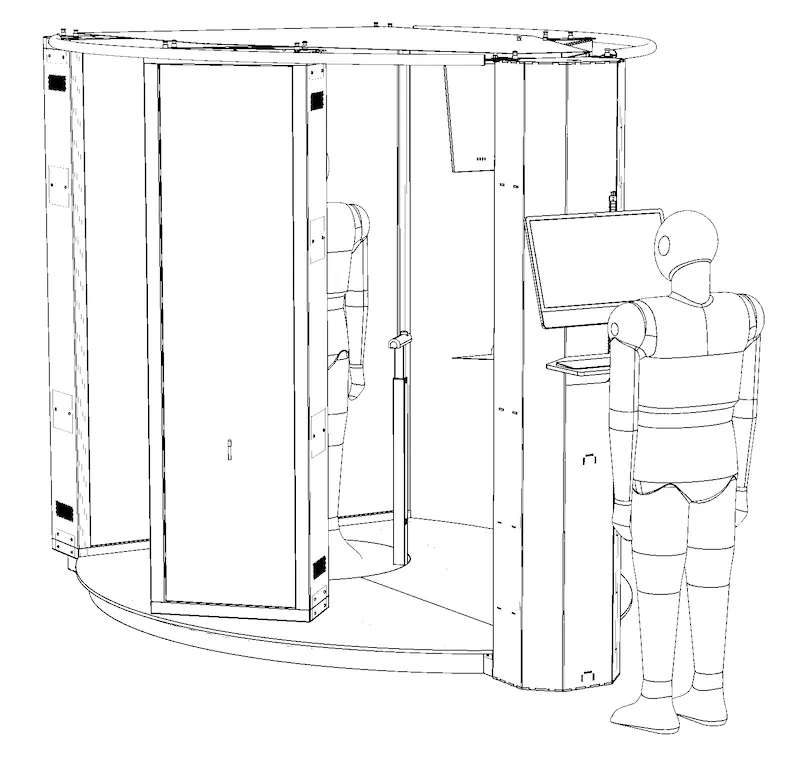
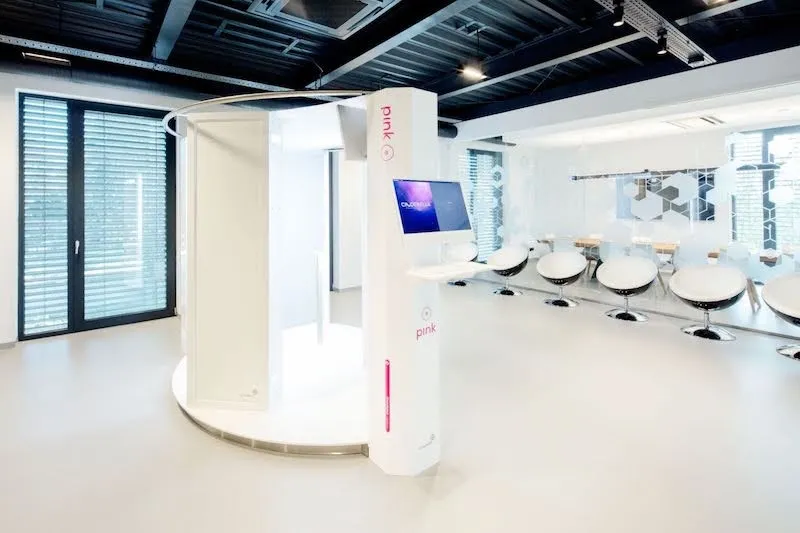
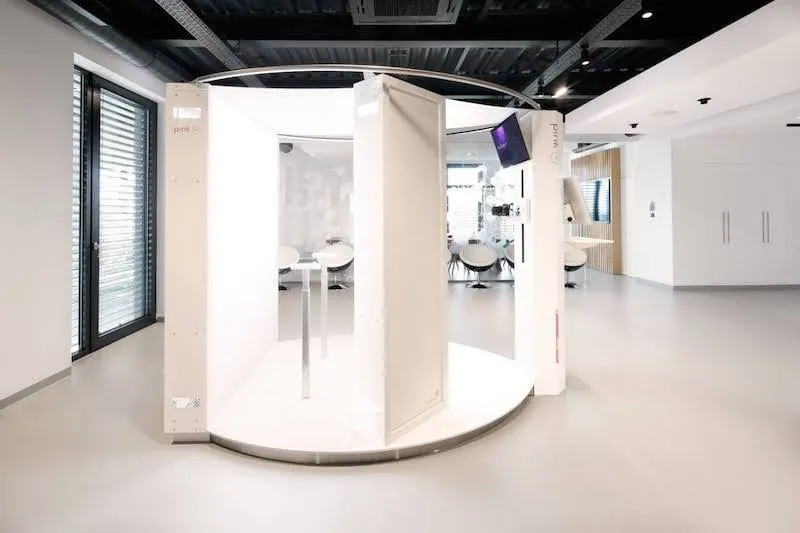
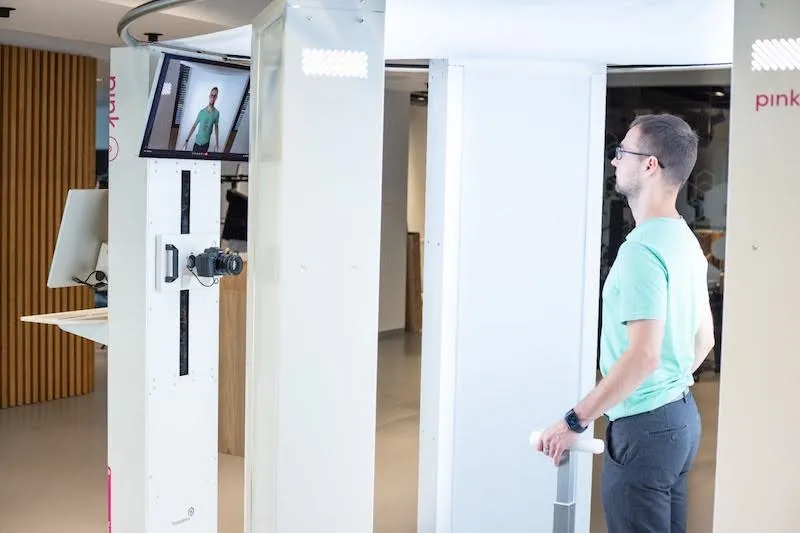
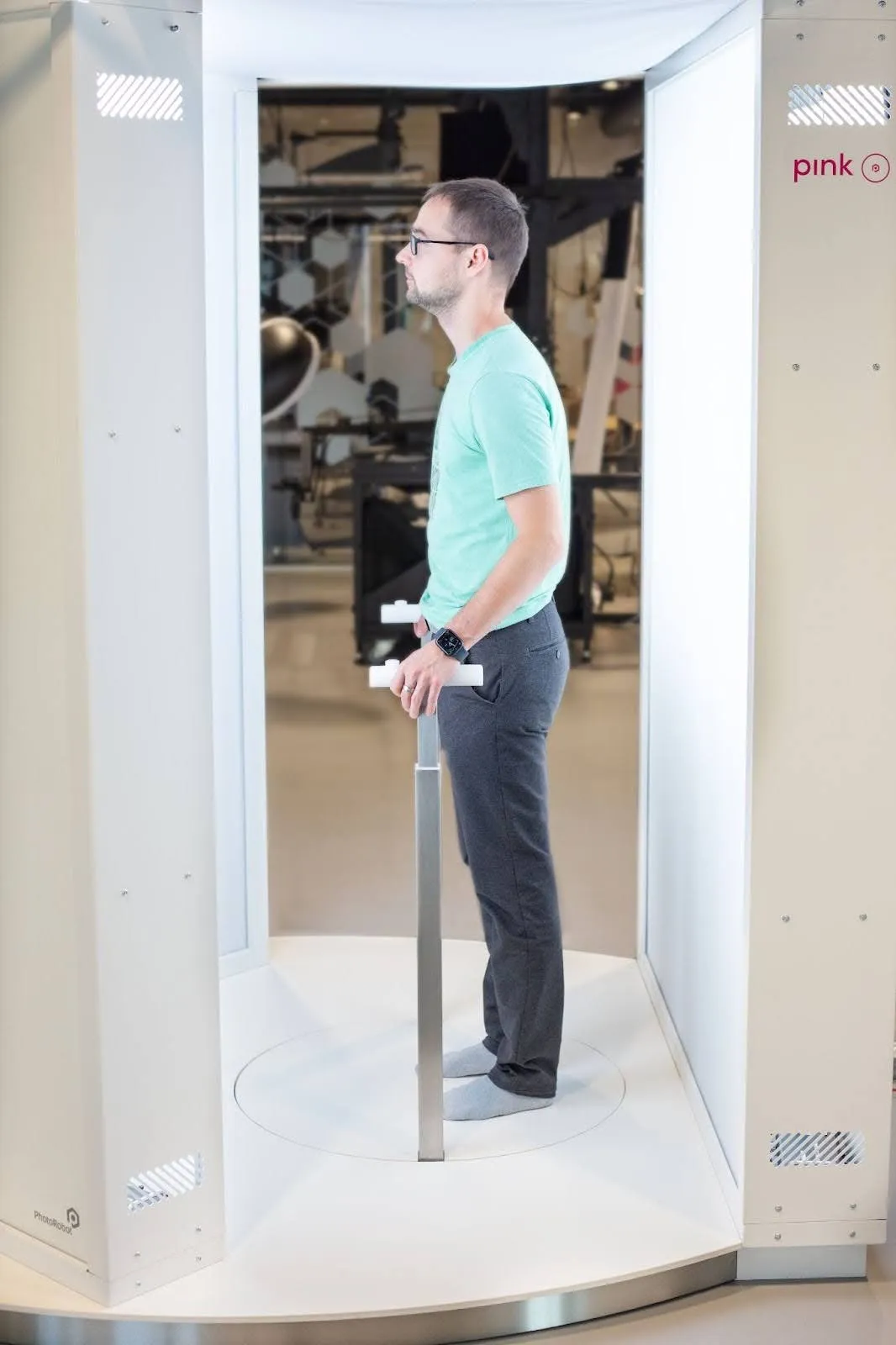
PhotoRobot PINK is a machine designed to capture images of the upper part of a standing person (patient) from defined angles in a clinical environment. The patient is illuminated for photography using professional-quality LED panels, while an evenly illuminated background guarantees easy automated background separation. At the same time, the intensity of all lights is DMX-controlled by the system, allowing for the creation of various presets (if required) that may vary depending on the color of the skin, for example. 

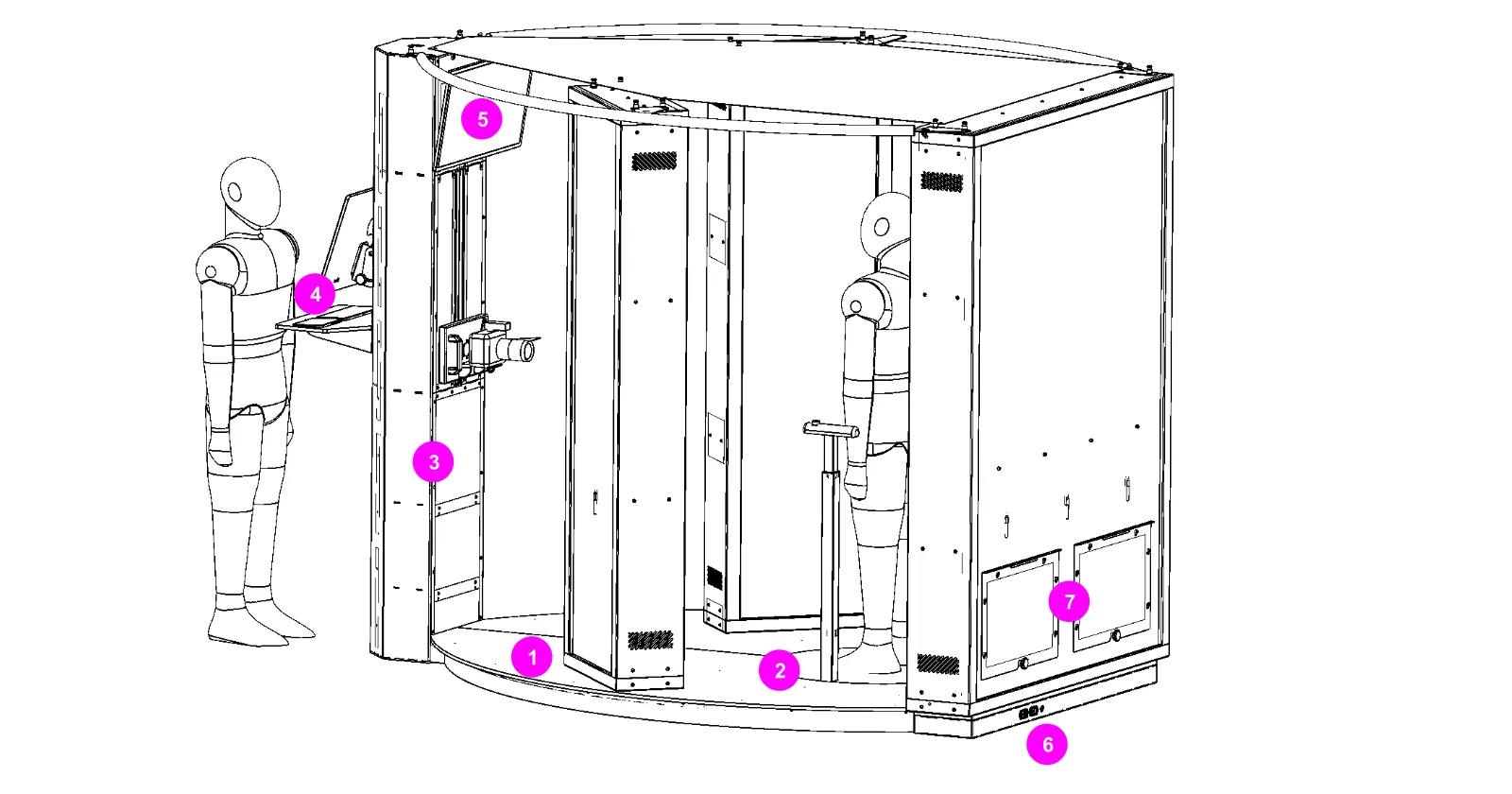
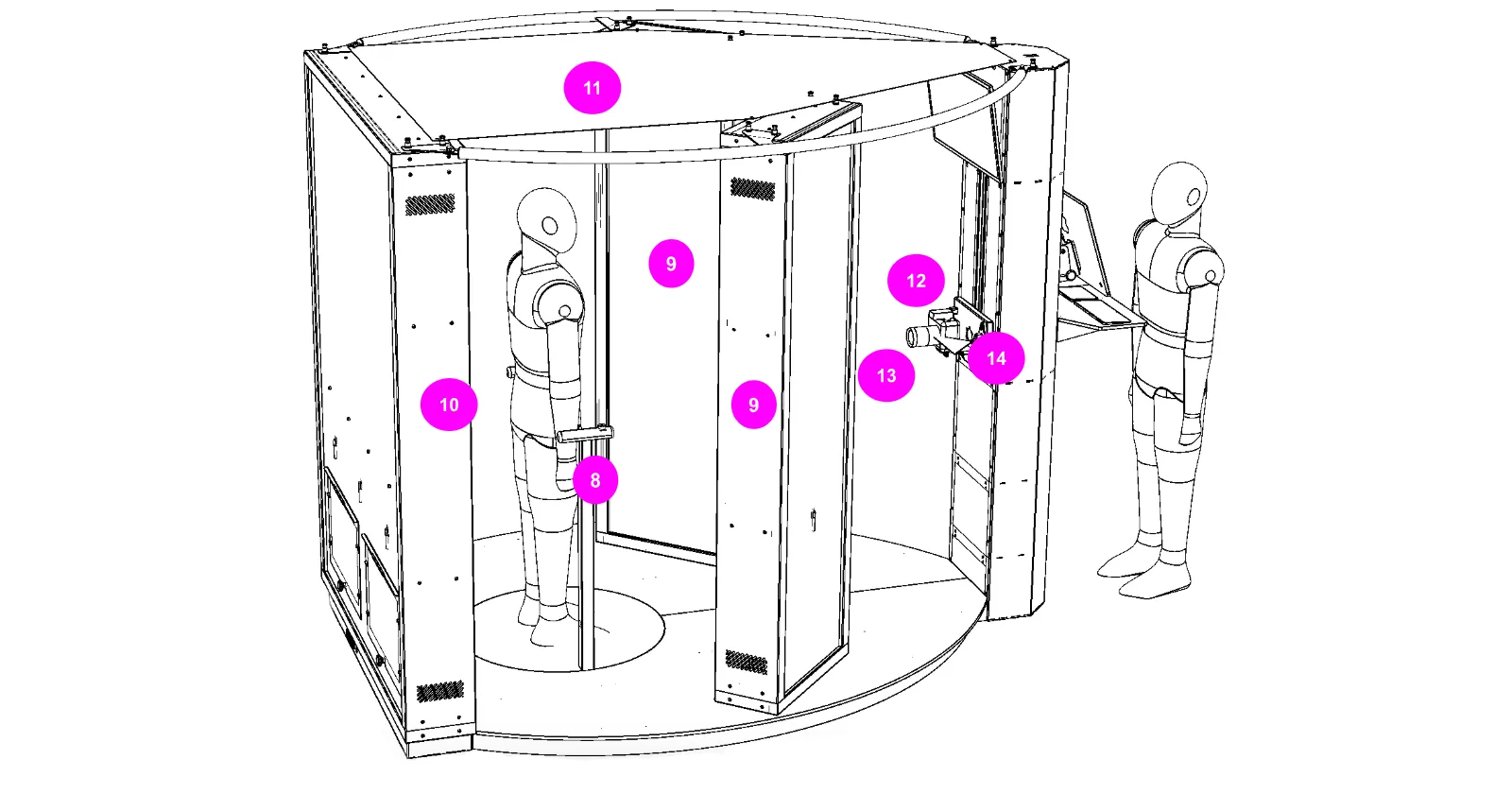
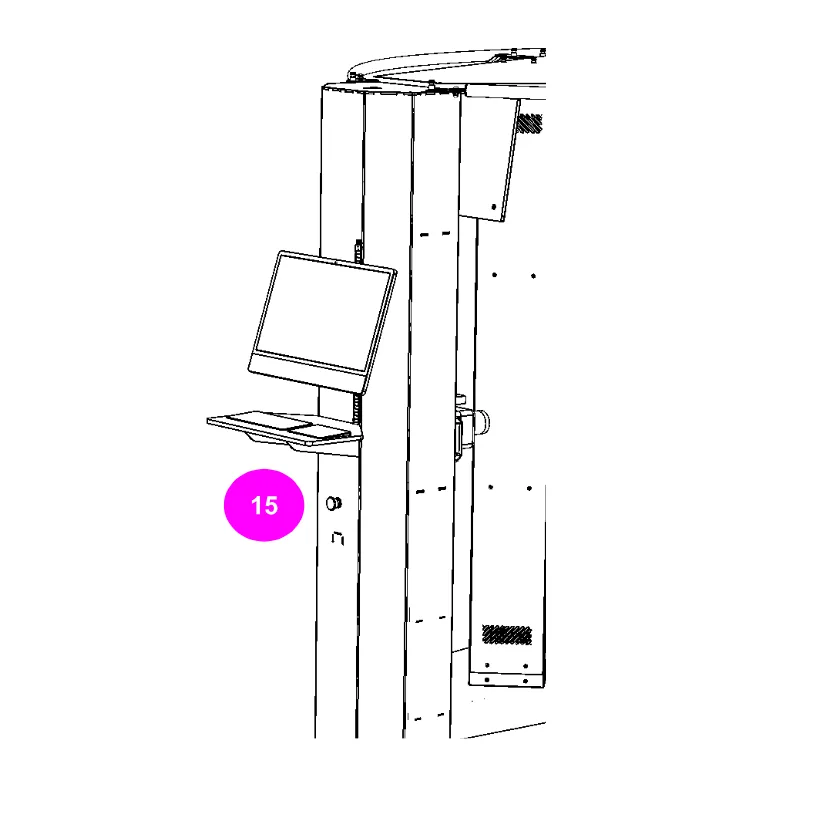
2.1. Machine Components

  • Machine Floor (1)
  • Rotary Platform (2)
  • Operator’s Column (3)
  • Operator’s Computer (4) – with barcode scanner, keyboard, trackpad
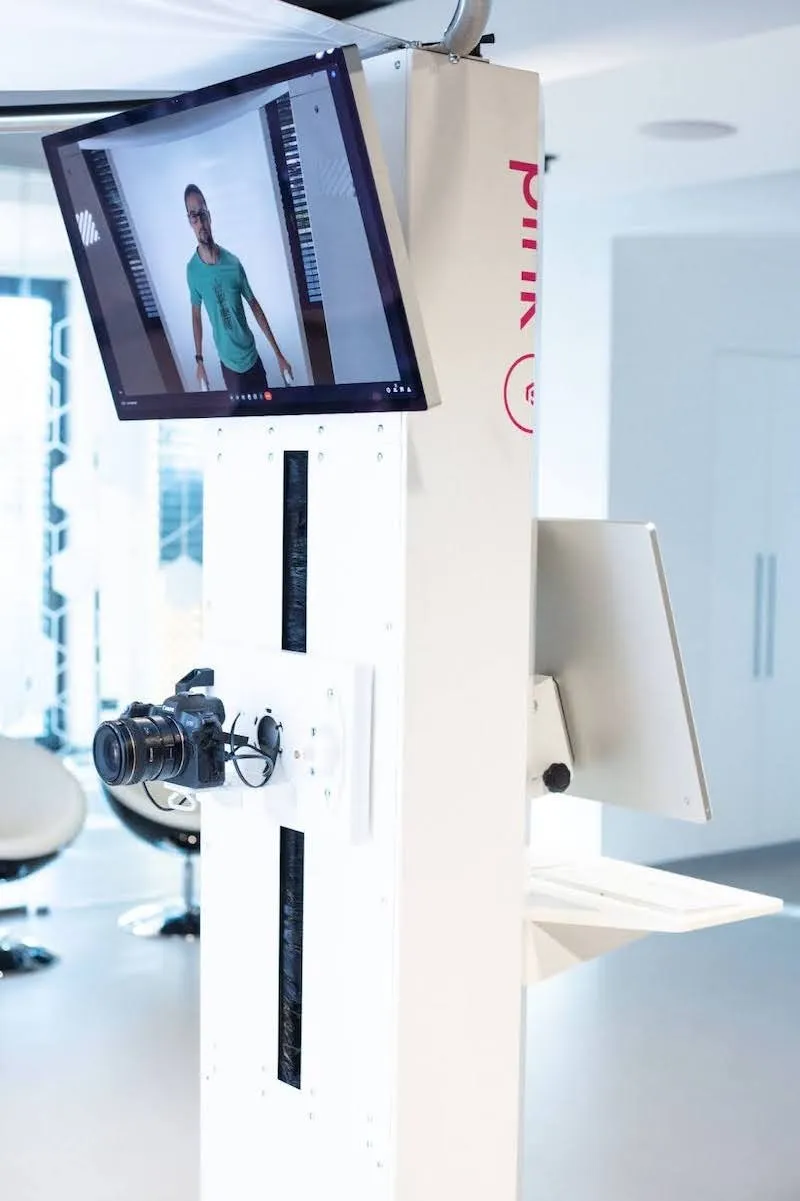
  • Patient’s Screen (5) – with camera and speakers
  • Power Socket, LAN Socket (6)
  • Service Doors (7)

  • Patients Telescopic Handlebars (8)
  • Front Lights (9)
  • Back Light (10)
  • Lampshade (11) – parasite light protection
  • Camera Slider Assembly (12)
  • Digital Camera with 50mm fixed-focal lens (13)
  • Vertical Line Laser (14)
  • Emergency Stop, Power Switch (15)

2.2. Operator's Computer Interface

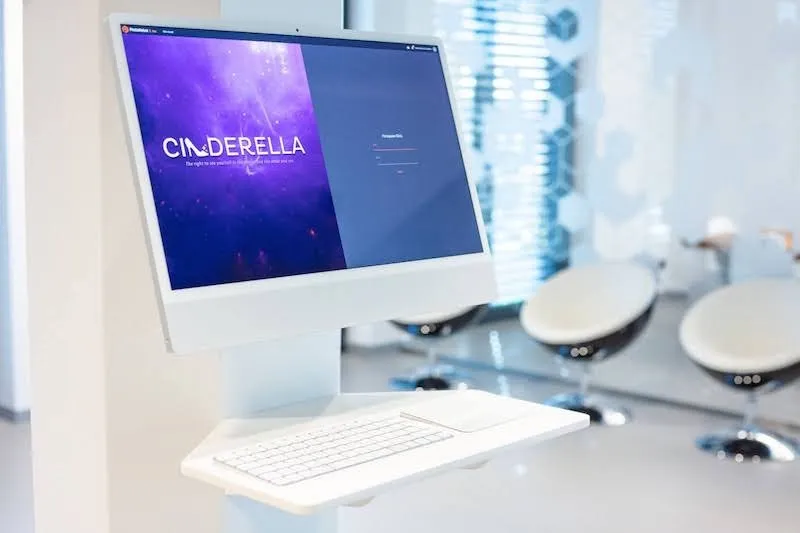
The Operator’s workspace is equipped with a VESA-mounted Apple iMac computer with a keyboard (national version) and trackpad (built-into the table). At the same time, the keyboard and trackpad are easily removable for cleaning.

The User interface is based on PhotoRobot_controls system and available in two versions:

  1. “Kiosk” mode – allowing only the scanning of patient barcodes by the user, while the rest of the process is fully automated;
  2. “Full” mode – allowing detailed settings for the entire system.

2.3. Patient Computer Interface

The Patient screen is equipped with a VESA-mounted Apple Studio display, allowing remote video conferencing with doctors (using audio and video).

  • Note: At the same time, the patient screen can also be used to show a set of images with audible or written instructions for the patients before the pictures’ automated capturing process begins.

2.4. Patient's Setup

Camera height above the floor is manually adjustable to reach the optimal position towards the patient's breasts. The lens level is indicated via a horizontal laser level, while the laser is switched on / off automatically. When the machine is on and the automated capturing process is not running, the laser is on. When the capturing process starts, the laser is switched off automatically so that the laser line is not present in the images.

The patient's armrests are height adjustable. The arm position is described by the clinic requirements. To release the retractable telescopic supports, press the button at the top of the handlebar. The lift is supported by a pneumatic piston, so the movement is slow and the way up is usually automatic; moving down requires a press down (while pressing the button).

2.5. Network Connectivity

The robot is equipped with all the necessary network components internally:

  • Computer and robot controller via a computer network (to a built-in router),
  • Camera via USB (to the computer),
  • LED lights via a DMX bus (to the robots controller),
  • Barcode reader via USB (to the computer).

The following text is useful for servicing and diagnostic purposes only; the operation of the machine is fluent without these steps.

2.5.1. To locate the PINK robot in the computer network, ensure the power switch on the robot is in the OFF position, and plug the power cord into the electrical socket. Then, connect the machine to the internet. Both connectors are located at the back side of the machine.

2.5.2. Next, power on the main switch on the machine and wait 2 minutes until it is completely up and running (this will initiate the machine controller, light controllers etc.). Later, power on the computer and extended display.

2.5.3. Download the “Frfind” utility for finding robots on the local network via PhotoRobot Account Downloads, and start the Frfind application. It will search the local network for PhotoRobots. If one is found, copy its IP address and paste it in URL format into any web browser started on the computer. This will open the Service GUI.

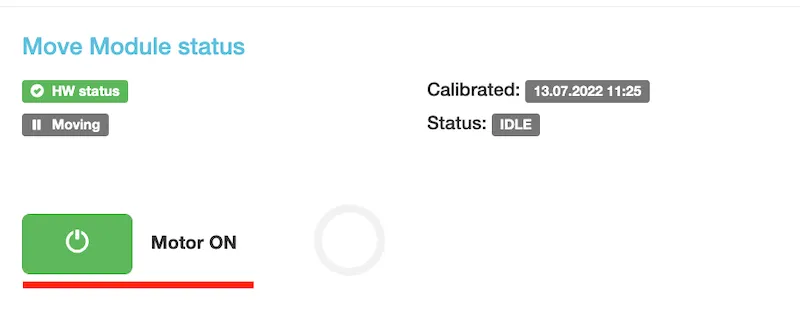
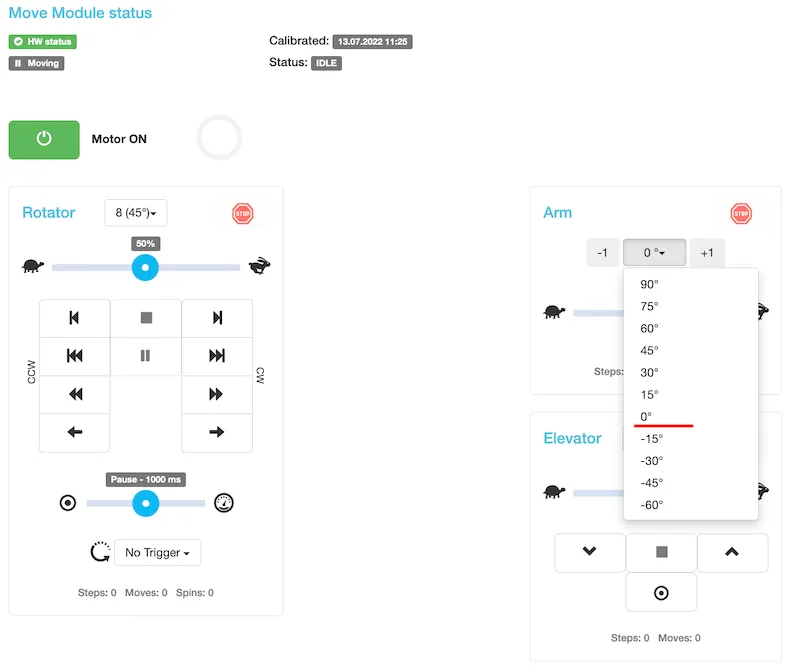
2.5.4. In the Service GUI, turn on the motor.

3.5.4. Next, turn the platform to any angle to test it. 

3. Software - PhotoRobot Controls App

Workplace control is included in the PhotoRobot Controls software, which is a part of your PINK robot delivery. Please register at account.photorobot.com to have access for your software license (and for a related license key, contact PhotoRobot support).

The software can be downloaded via the PhotoRobot Account Downloads Page.

The PINK workplace includes a special software modification aimed to allow the operator to easily take photos with minimal knowledge of the software. For this purpose, a wizard was developed to guide the operator through the scanning process.

After starting the application, wizard mode is automatically turned on.

Note: For more general information on PhotoRobot wizards, refer to PhotoRobot Controls - Wizards. For the technical instructions on wizards mode, refer to the Wizard Mode Configuration Guide.

3.1. How to Start PINK

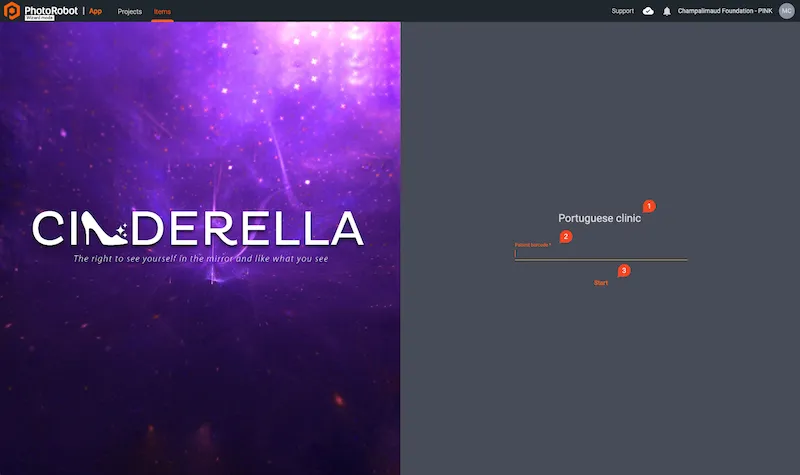
3.1.1. To start taking photos with PINK, begin by selecting the Project for which you want to take photos. In the case of PINK, a project can mean the location of a workplace somewhere in the world, for example: Portugal.

3.1.2. Once you have selected a Project, a list of patients you have photographed will appear. To take a new series of pictures, click on the + Add person button at the top of the list to start the wizard.

3.2. Wizard Steps

3.2.1. At the wizard's first step, you must specify the patient for whom you will take photos. To maintain anonymity, it was agreed that a QR code / barcode would be used together with a wireless code reader that is part of the workplace. Each patient will then have their own unique QR code / barcode with which they will be identified in the system.

  • Name of Project to Scan Photos (1)
  • QR / Barcode of Patient (2)
  • Confirmation and Start Scanning (3)

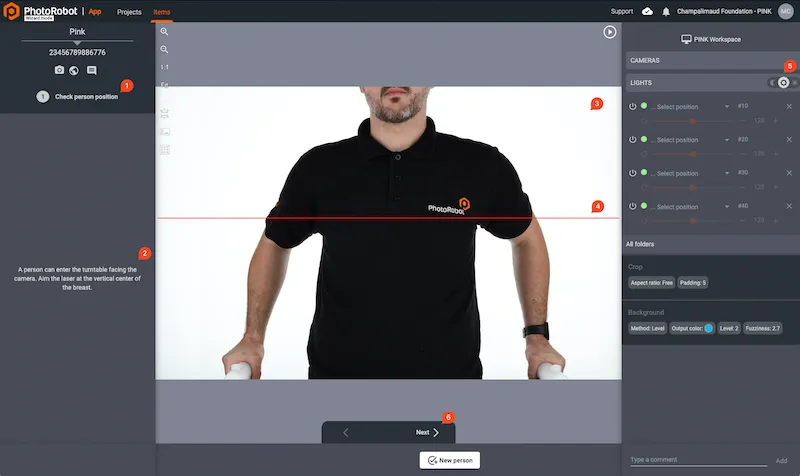
3.2.2. After starting the wizard, the next screen gradually prompts the user to action. In the first step, the LiveView of the camera is automatically turned on. At the same time, the left-hand side of the interface displays the current step and its instructions. Then, there are the following main user controls.

  • Step Name (1)
  • Step Instructions (2)
  • Camera LiveView (3)
  • Laser (4)  – which can also be positioned vertically by grabbing the handle on which the camera is attached
  • Light Control (5) – with a three-position switch for light controls:
    • Moon Icon: Turn off completely
    • Working Icon: Display sensitivity during scanning, with position switched on automatically as soon as you start scanning in the next step – there is no need to worry about it being in the right position
    • Full Icon: Full lighting intensity
  • Next Button (6) – click to move to the next step after completing instructions

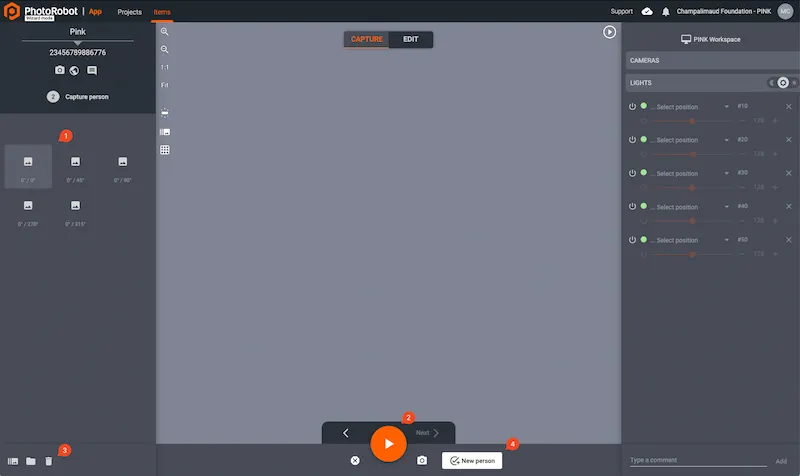
3.2.3. In the next step, the process of scanning the patient begins. Press the Play (start) button, and the workplace will automatically take pictures from pre-defined angles. Then, after the capture process is complete, the photos will be automatically cropped, and a blue background will be set. The controls in this step are as follows.

  • Preset Angles (1) in which the patient will be scanned
  • Play Button (2) to start the scanning process
  • Delete Button (3) to repeat the capture, delete the existing images, and start the capture again using the Play button
  • New Person (4) for when you are satisfied with the scanning, and wish to switch to scanning the next person. 

Subsequently, after switching to the next person, the wizard's first step will be displayed again, and the user repeats the steps described above.

3.3. Data structure

The data structure levels are:

Projects > Image type > Patient > Folders > Images.

The sample hierarchy tree follows:

  • Portuguese clinic (Project)
    • Processed (Image type - in this folder are edited / cropped final images)

    • 20000001_9000001 (Patient with CCC and CID) [Format: CCC_CID]
      • 2023-01-17 (Folder - scanning batch) [Format: YYYY-MM-DD]
        • 20000001_9000001_r000_a000.png (Image)
          [Format: CCC_CID_row_angle.png]
        • 20000001_9000001_r000_a045.png (Image)
      • 2023-02-01 (Folder - scanning batch)
        • 20000001_9000001_r000_a000.png (Image - specific angle)
        • 20000001_9000001_r000_a045.png (Image - specific angle)
    • 20000002_ (Patient without CID)
      • 2022-01-17 (Folder - scanning batch)
        • 20000002__r000_a000.png (Image - specific angle)
        • 20000002__r000_a045.png (Image - specific angle)
  • Polish clinic (Project)
    • Processed
      • 20000005_9000006 (Patient with CCC and CID)
        • 2022-09-01 (Folder - scanning batch)
          • 20000005_9000006_r000_a000.png (Image)
          • 20000005_9000006_r000_a045.png (Image)

Note: If sample clinic project data (of the Portuguese clinic project) is needed, contact your PhotoRobot representative for the download link.

On the harddrive, there are then two types of images / image types:

  • Original: Image from the Camera
  • Processed: Cropped images with other edit operations applied.

For synchronization, the Processed data will be essential.

In the case of implementing a script (to monitor folder structure), take into account that there must be some delay (time) after which it will synchronize data with PINK systems.

Important: Choose the time based on when you know that you will not change the data. This is for cases when sometimes it is necessary to recapture a person again.

Local Files / Folders Configuration

Configuration of the target folder on a local drive is set in the app via: 

Settings > General > Local Files > Output Folder.

File Names Configuration

The configuration of file names is provided by PhotoRobot and cannot be changed by the customer. The file names configuration is:

  • Spin Filename:
    • Original
      • ${projectName}/Original/${itemName}_${trackingCode}/${folderName}/${itemName}_${trackingCode}_${turnAngle}.jpg
    • Processed
      • ${projectName}/Processed/${itemName}_${trackingCode}/${folderName}/${itemName}_${trackingCode}_${turnAngle}.jpg
  • Stills Filename:
    • Original
      • ${projectName}/Original/${itemName}_${trackingCode}/${folderName}/${itemName}_${trackingCode}_${turnAngle}.jpg
    • Processed
      • ${projectName}/Processed/${itemName}_${trackingCode}/${folderName}/${itemName}_${trackingCode}_${turnAngle}.jpg

Wizards General Configuration

All wizard configurations are provided by PhotoRobot. It is recommended that the customer not modify these configurations.

General configuration of the wizard is available via the Settings menu / Wizards, which includes the following settings.

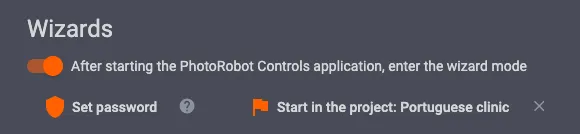
  • After starting PhotRobot Controls application, enter wizard mode
  • Start in the project: Portuguese clinicnote the project for each clinic will be different based on location

Wizard Steps Settings

The following details the general steps settings for all PINK workstations. Configuration is created once at the start of the installation.

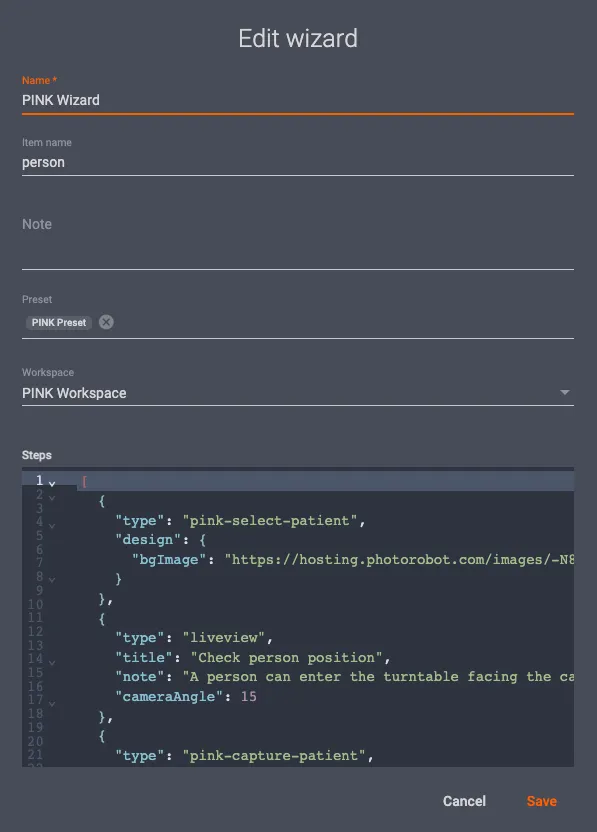
In order to add a configuration, go to Settings, open the Wizards options, and click + Add wizard.

Then, complete the dialogue using the following values:

  • Name: PINK Wizard,
  • Item Name: person,
  • Preset: PINK Preset,
  • Workspace: PINK Workspace,
  • Steps: contains JSON configuration of the steps.

Next, use the following configuration:

[
  {
    "type": "pink-select-patient",
    "design": {
      "bgImage": "https://hosting.photorobot.com/images/-N83FQcLGsHMXdcYTzhe/-NEGUsIT6MrjA2Hq5LVF/NORMAL/ko5G2B948qAWsuiQ2Gs8xw?w=1920"
    }
  },
  {
    "type": "liveview",
    "title": "Check person position",
    "note": "A person can enter the turntable facing the camera. Aim the laser at the vertical center of the breast.",
    "cameraAngle": 15
  },
  {
    "type": "pink-capture-patient",
    "title": "Capture person",
    "frames": [
      {"swingAbs": 0, "turnAbs": 0},
      {"swingAbs": 0, "turnAbs": 45},
      {"swingAbs": 0, "turnAbs": 90},
      {"swingAbs": 0, "turnAbs": 270},
      {"swingAbs": 0, "turnAbs": 315}
    ]
  }
]
3.4. Create New Project

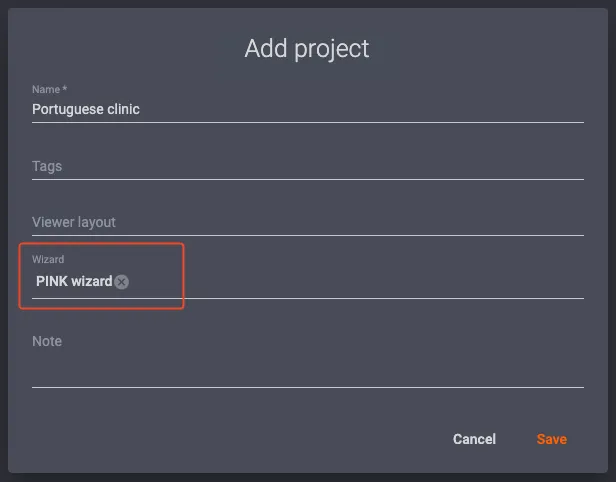
3.4.1. If you want to scan into a new project (new clinic), you can create a new project from the list of projects by clicking on + Add project in the header.

3.4.2. After choosing to add a new project, a dialogue box will open where you can choose a project name.

3.4.3. Next, note that filling in the Wizard field is important, as it is necessary for the photo capture process. Refer to the following same dialog to ensure the Wizard field is complete.

4. Machine Dimensions

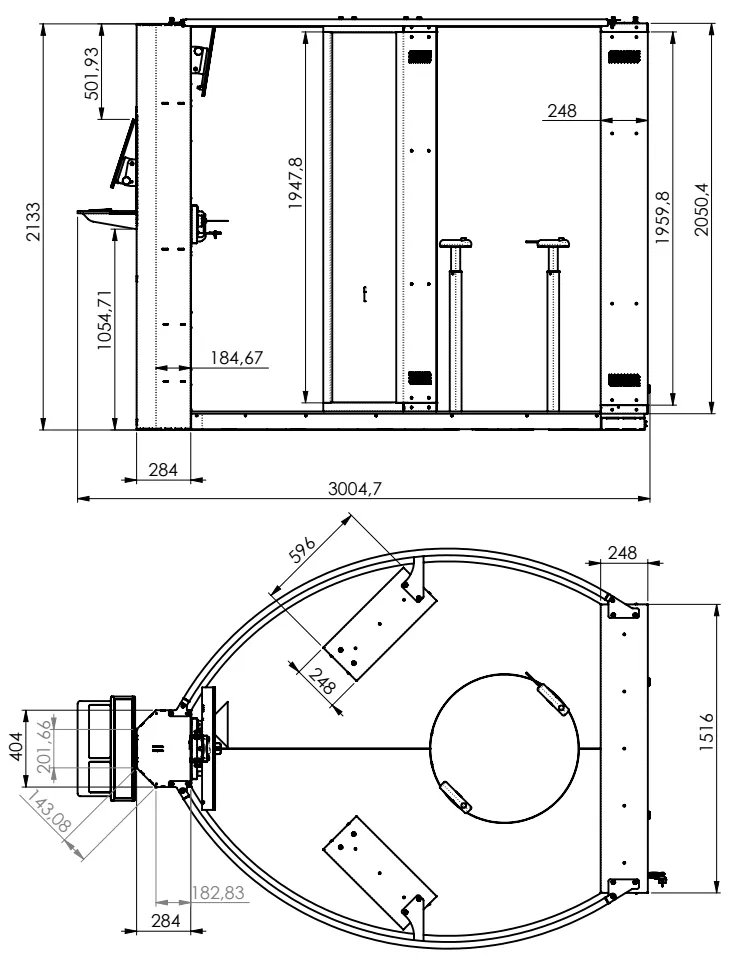
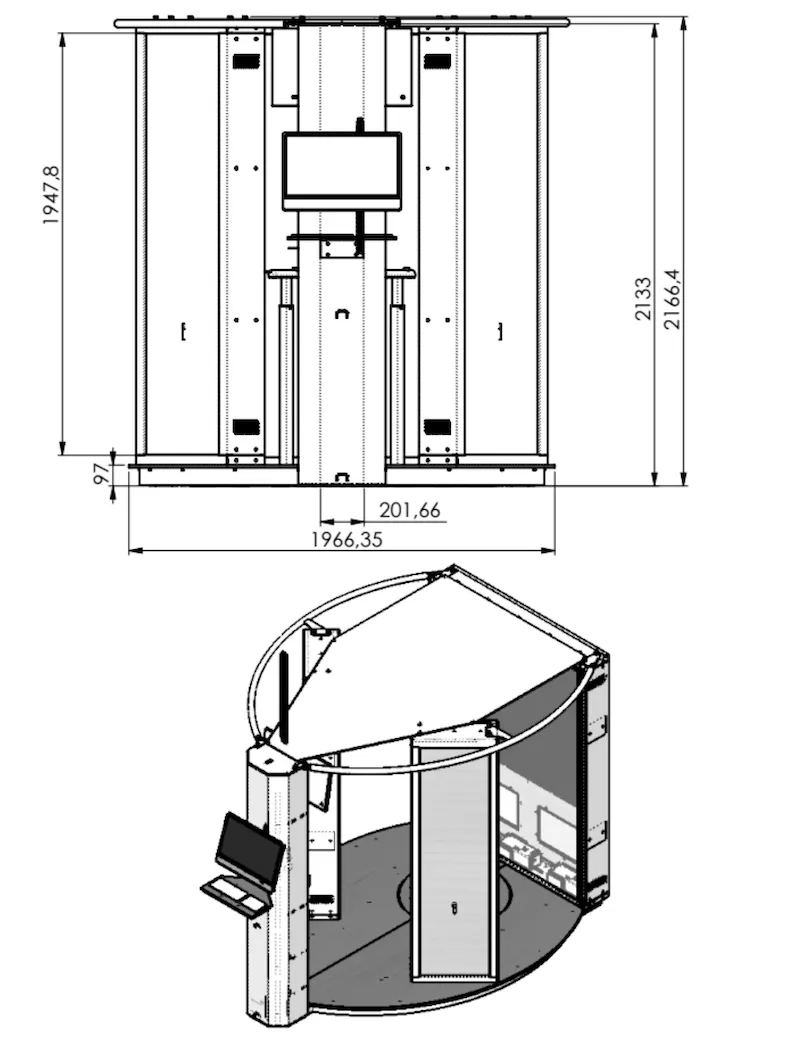
All dimensions in the PINK diagrams are illustrated in metric (mm) measurements. Note: To view a 3D model of the PINK machine dimensions with AR functionality, scan the following barcode, and view the 3D model using eDrawingsviewer:

The overall weight of the PINK machine and its equipment is 500 kg, and its dimensions are as follows.

5. Troubleshooting

For solutions to common issues which may occur, refer to PhotoRobot Troubleshooting.

If encountering issues during machine operation, feel free to send a support ticket to PhotoRobot Support. PhotoRobot’s seasoned team of technicians will help manage the issues.

Note: Registration to your PhotoRobot Account is related to the software, PhotoRobot Controls App, which you are operating on the PINK machine.

6. Movement Stop

6.1. Soft Stop

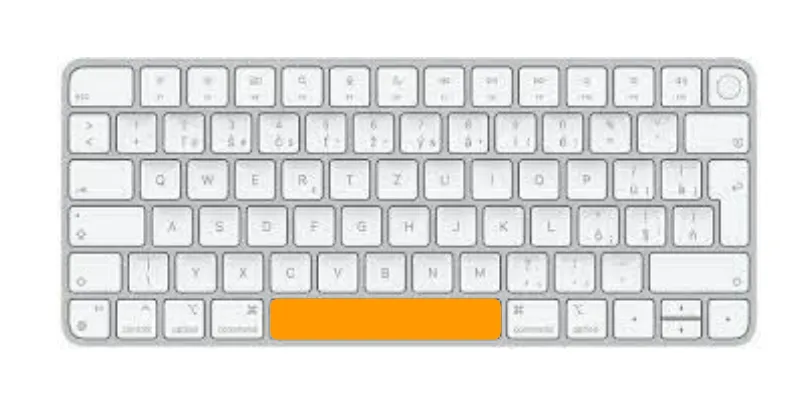
In the case of a “soft stop” when the sequence completes the currently planned movement, it is possible to use the spacebar to pause the sequence.

6.2. Hard Stop

During operation (platform movement), the ESC key works as an immediate “hard stop” (to immediately stop the movement of the platform or the running sequence). Alternatively, movement can be stopped by pressing the STOP button next to the Play / start button.

6.3. Emergency Stop

Anytime the (hardware) emergency stop button is pressed, it stops the movement (if currently running), and makes the platform free-moving (motor is disconnected). When the button remains pressed, the machine cannot perform movements by the software.

After the emergency is solved and the emergency button is released, the platform needs to be re-positioned to the initial position (if in a different position) – see the next point for details.

The next robotic movement will power the motor on again (with automatic operation or zero-positioning movements).

6.4. Returning the Platform to Proper Zero Position

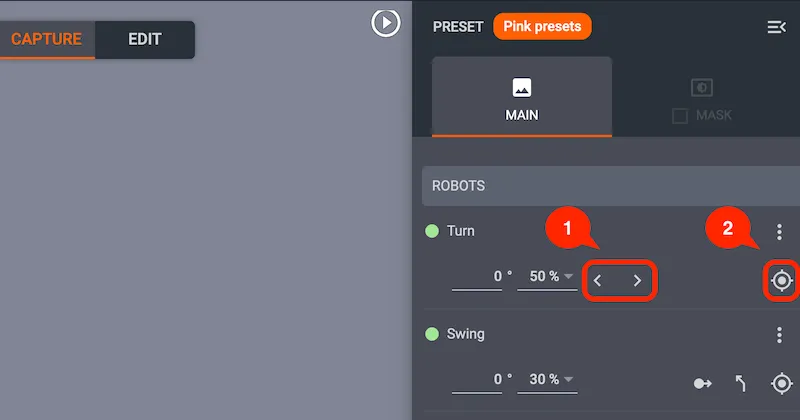
After an emergency stop or other stop operation in “non-zero-position,” please use the virtual arrow keys to move the platform into the expected zero position using the following steps.

  • Step 1: In the right panel of the Robots widget, use the arrows to rotate the platform to the zero position.
  • Step 2: When the platform is at zero, confirm this position by pressing the button “Set current position to zero.”

7. Maintenance and Revisions

Important: The machine is to be reviewed once annually by authorized personnel as follows:

  1. Rotary Platform Drive Inspection
  2. Camera Lift Inspection
  3. Inspection of Telescopic Supports (handlebars)
  4. Inspection of the Luminosity of the Built-in LED panels and its DMX Controllers

For technical support, please create a PhotoRobot support ticket using your PhotoRobot account.

EOS Rebel Series

EOS DSLR Series

EOS M Mirrorless Series

PowerShot Series

Close-Up / Handheld

Select Camera Category:

The Canon EOS Rebel Series offers beginner-friendly DSLR cameras with solid image quality, intuitive controls, and versatile features. Ideal for photography enthusiasts, these cameras provide reliable autofocus, vari-angle touchscreens, and Full HD or 4K video recording.

Model
Computer
Connection
LAN
Wi-Fi
Sensor Size
Max Sensor
Resolution (MP)
Max Video
Resolution
EOS Rebel T8i
USB 2.0
No
Yes
APS-C
24.1
4K at 24 fps
EOS Rebel SL3
USB 2.0
No
Yes
APS-C
24.1
4K at 24 fps
EOS Rebel T7
USB 2.0
No
No
APS-C
24.1
1080p at 30 fps
EOS R Mirrorless Series
USB 3.1
No
Yes
Full Frame / APS-C
Varies
Up to 8K
EOS R1
USB 3.2
No
Yes
Full Frame
24
6K
EOS R5 Mark II
USB 3.2
No
Yes
Full Frame
45
8K
EOS R5
USB 3.1
No
Yes
Full Frame
45
8K
EOS R6 Mark II
USB 3.2
No
Yes
Full Frame
24.2
4K at 60 fps
EOS R6
USB 3.1
No
Yes
Full Frame
20.1
4K at 60 fps
EOS R8
USB 3.2
No
Yes
Full Frame
24.2
4K at 60 fps
EOS R10
USB 3.2
No
Yes
APS-C
24.2
4K at 60 fps
EOS R50
USB 3.2
No
Yes
APS-C
24.2
4K at 30 fps
EOS R100
USB 2.0
No
Yes
APS-C
24.1
4K at 24 fps
EOS R7
USB 3.2
No
Yes
APS-C
32.5
4K at 60 fps
EOS R3
USB 3.2
Yes
Yes
Full Frame
24.1
6K
EOS RP
USB 2.0
No
Yes
Full Frame
26.2
4K at 24 fps
EOS Ra
USB 3.1
No
Yes
Full Frame
30.3
4K at 30 fps

The Canon EOS DSLR Series delivers high-quality images, fast autofocus, and versatility, making it ideal for both photography and video production.

Model
Computer
Connection
LAN
Wi-Fi
Sensor Size
Max Sensor
Resolution (MP)
Max Video
Resolution
EOS-1D Mark III
USB 2.0
No
No
APS-H
10.1
1080p at 30 fps
EOS-1Ds Mark III
USB 2.0
No
No
Full Frame
21.1
Not available
EOS-1D Mark IV
USB 2.0
No
No
APS-H
16.1
1080p at 30 fps
EOS-1D X
USB 2.0
No
No
Full Frame
18.1
1080p at 30 fps
EOS-1D C
USB 2.0
No
No
Full Frame
18.1
4K at 24 fps
EOS-1D X Mark II
USB 3.0
No
No
Full Frame
20.2
4K at 60 fps
EOS-1D X Mark III
USB 3.1
No
No
Full Frame
20.1
4K at 60 fps
EOS 5D Mark II
USB 2.0
No
No
Full Frame
21.1
1080p at 30 fps
EOS 5D Mark III
USB 2.0
No
No
Full Frame
22.3
1080p at 30 fps
EOS 5D Mark IV
USB 3.0
No
Yes
Full Frame
30.4
4K at 30 fps
EOS 6D
USB 2.0
No
Yes
Full Frame
20.2
1080p at 30 fps
EOS 6D Mark II
USB 2.0
No
Yes
Full Frame
26.2
1080p at 60 fps
EOS 7D
USB 2.0
No
No
APS-C
18.0
1080p at 30 fps
EOS 7D Mark II
USB 3.0
No
No
APS-C
20.2
1080p at 60 fps
EOS 90D
USB 2.0
No
Yes
APS-C
32.5
4K at 30 fps
EOS 850D
USB 2.0
No
Yes
APS-C
24.1
4K at 25 fps

The Canon EOS M Mirrorless Series combines compact design with DSLR-like performance. Featuring interchangeable lenses, fast autofocus, and high-quality image sensors, these cameras are great for travelers and content creators seeking portability without sacrificing image quality.

Model
Computer
Connection
LAN
Wi-Fi
Sensor Size
Max Sensor
Resolution (MP)
Max Video
Resolution
EOS M50 Mark II
USB 2.0
No
Yes
APS-C
24.1
4K at 24 fps
EOS M200
USB 2.0
No
Yes
APS-C
24.1
4K at 24 fps
EOS M6 Mark II
USB 3.1
No
Yes
APS-C
32.5
4K at 30 fps

The Canon PowerShot Series offers compact, user-friendly cameras for casual shooters and enthusiasts. With models ranging from simple point-and-shoots to advanced zoom cameras, they provide convenience, solid image quality, and features like image stabilization and 4K video.

Model
Computer
Connection
LAN
Wi-Fi
Sensor Size
Max Sensor
Resolution (MP)
Max Video
Resolution
PowerShot G5 X Mark II
USB 2.0
No
Yes
1.0-type
20.1
4K at 30 fps
PowerShot G7 X Mark III
USB 2.0
No
Yes
1.0-type
20.1
4K at 30 fps
PowerShot SX70 HS
USB 2.0
No
Yes
1/2.3-inch
20.3
4K at 30 fps

The Canon Close-Up & Handheld Cameras are designed for detailed, up-close photography and video. Compact and easy to use, they offer precision focus, high-resolution imaging, and versatile macro capabilities—perfect for vlogging, product photography, and creative close-ups.

Model
Computer
Connection
LAN
Wi-Fi
Sensor Size
Max Sensor
Resolution (MP)
Max Video
Resolution
EOS RP
USB 2.0
No
Yes
Full Frame
26.2
4K at 24 fps
EOS 90D
USB 2.0
No
Yes
APS-C
32.5
4K at 30 fps
iPhone
Lightning (USB 2.0)
No
Yes
Varies
Up to 48
Up to 4K at 60 fps